Import-ready CSV rows
The bank statement to CSV workflow creates clean transaction rows in a widely supported format for bookkeeping, reconciliation, and data imports.
Upload a bank statement PDF, scan, or image and turn its transactions into a clean CSV. Preview the rows, check available balances, and export one file or a merged batch without signing in. The bank statement to CSV workflow keeps source filenames visible in merged exports, so you can trace every row back to its original statement.
Drag and drop a PDF, photo, or scan. Your result stays in this page for review and download.
Click to upload or drag and drop
or click to browse from your device
PDF · JPG · PNG · WEBP · TIFF · up to 50 MB
Your file is sent directly to OpenRouter for extraction. We do not store a copy in this app; provider retention policies may apply.
Turn statement transactions into portable rows without copying and reformatting each entry by hand.
The bank statement to CSV workflow creates clean transaction rows in a widely supported format for bookkeeping, reconciliation, and data imports.
The bank statement to CSV preview shows normalized dates, descriptions, debits, credits, and balances before you save the file.
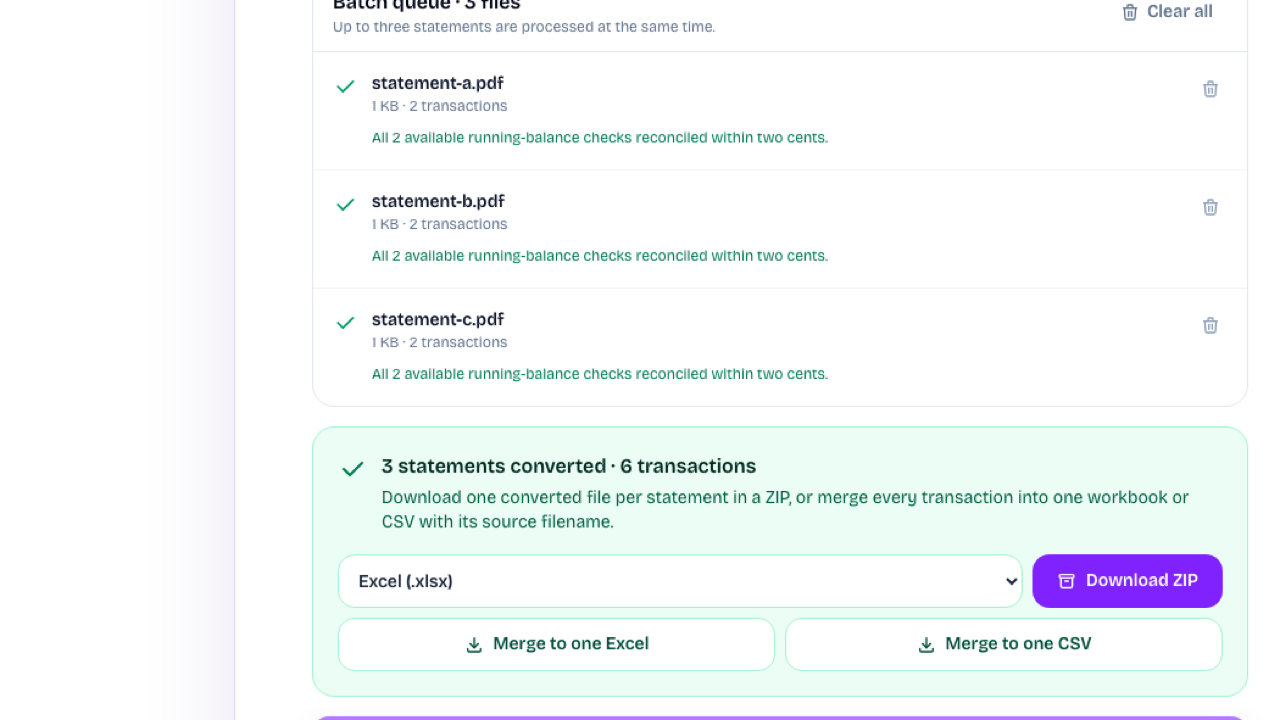
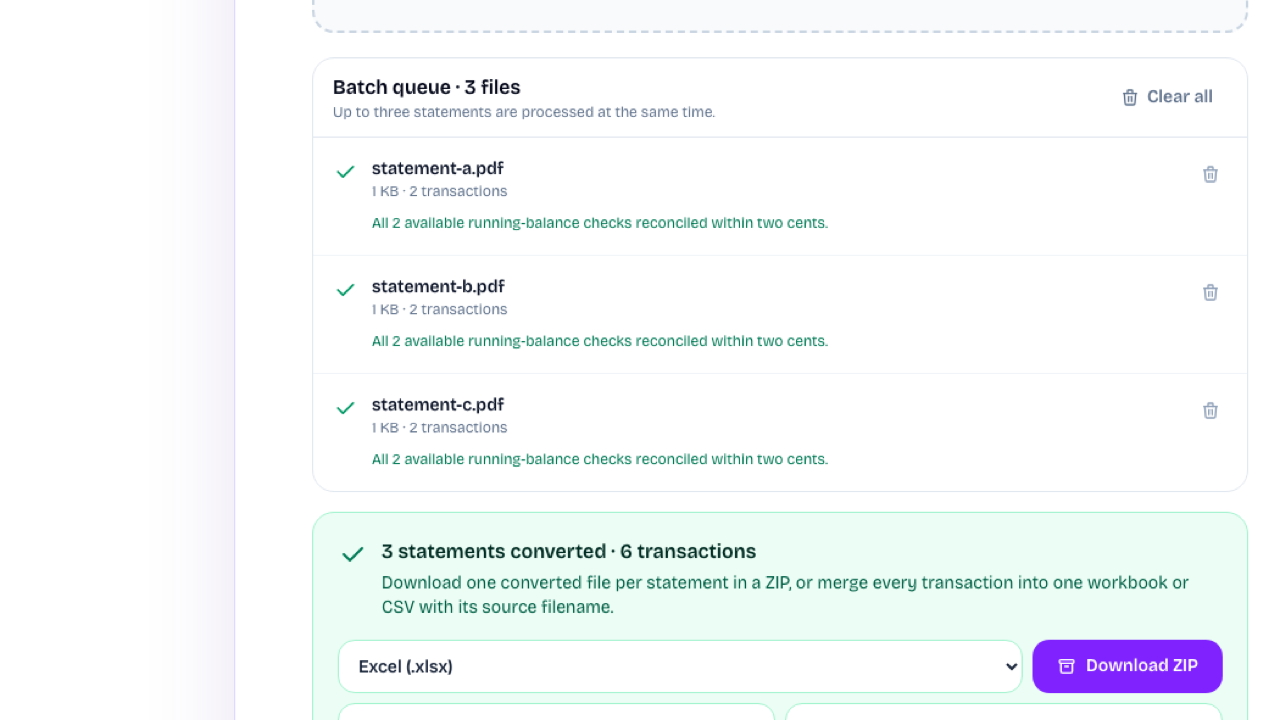
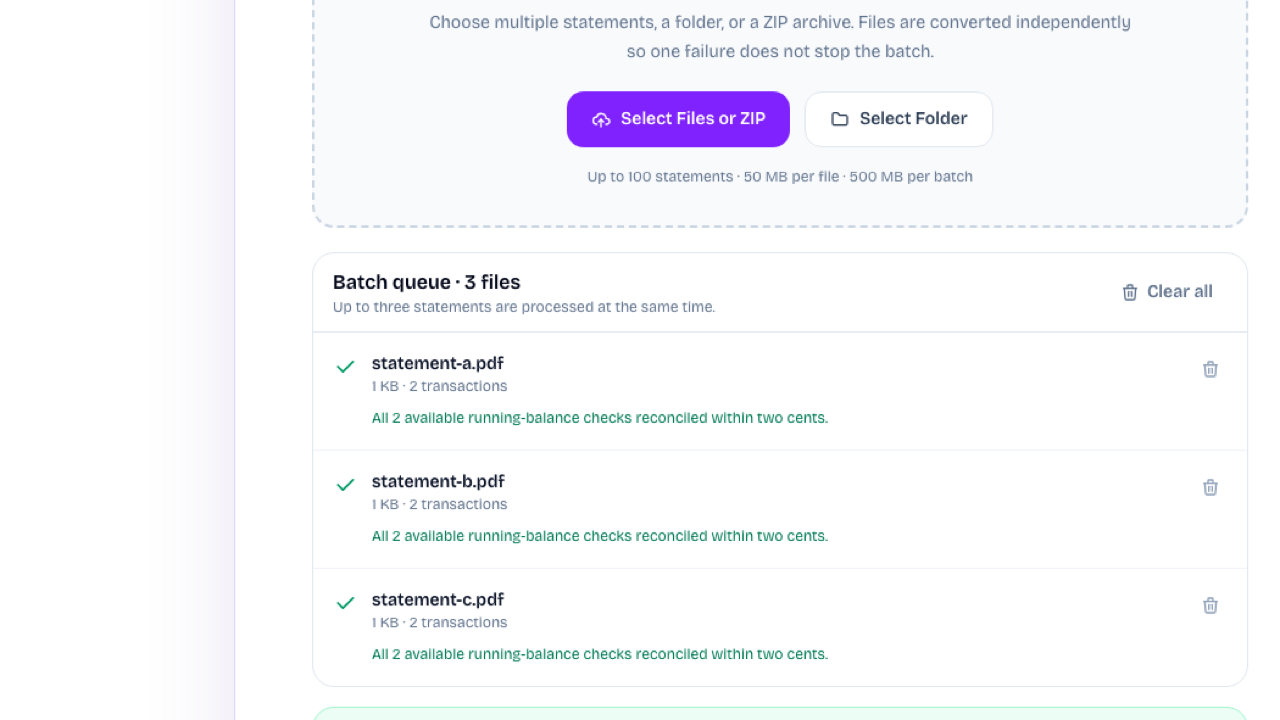
The bank statement to CSV workflow handles one statement or up to 100 files, then downloads separate CSV files or one merged CSV with source filenames.
Use the bank statement to CSV converter without signing in or using product credits. The app does not persist the uploaded statement or extracted result.
This bank statement CSV converter turns dates, descriptions, debits, credits, balances, and references into consistent rows that are easy to inspect and move between systems.
Create CSV Rows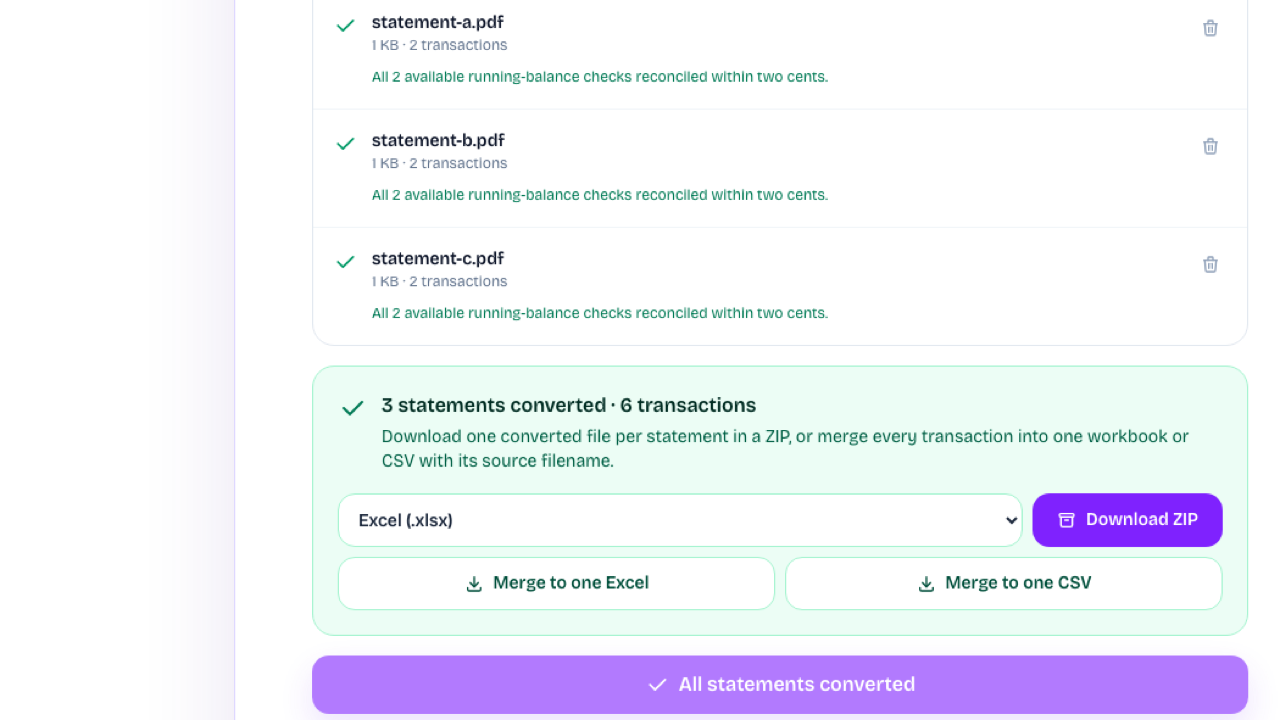
The bank statement to CSV workflow processes up to 100 statements, keeps each file's status visible, and downloads separate CSV files or one merged CSV with source filenames.
Merge Statements to CSVChoose one PDF or image, or add up to 100 statements from files, a folder, or a ZIP in Bulk mode.
The bank statement to CSV converter structures the transaction rows and checks available running-balance arithmetic when the source provides it.
Download an individual CSV, a ZIP of separate CSV files, or one merged CSV that identifies each source statement.
Upload a supported PDF or image, start the conversion, review the extracted transaction rows, and select CSV from the download options.
The converter can read PDF, JPG, PNG, WebP, and TIFF statements up to 50 MB each. Scanned and photographed statements are supported, but clearer files generally produce better extraction results.
Exports include available account details and normalized transaction fields such as date, description, debit, credit, balance, and reference. Empty source fields remain empty rather than being invented.
Yes. The bank statement to CSV workflow accepts up to 100 statements from selected files, a folder, or a ZIP. You can download separate CSV files in a ZIP or merge successful results into one CSV with source filenames.
The CSV uses standard comma-separated rows that work with many spreadsheet and accounting tools. Because import requirements vary, compare the column names and date formats with your destination system before importing.
It is free in this version and does not require an account or product credits. AI extraction can still make mistakes, so compare the CSV with the original statement before relying on it.

Start the bank statement to CSV workflow with one statement or a batch, inspect the extracted transactions, and download individual or merged CSV files.
Convert a Statement to CSV